Shine
Turn the scripts and configuration you use every day into personal tools you can install, update, and remove cleanly.
You may already sync those files between machines. But after they arrive, scripts still need to be
added to PATH, application configuration still needs the right destination, and local values
should not travel inside shared files. Updating everything by hand also makes it hard to know what
will be overwritten. Personal configuration also ends up scattered across shell files, application
directories, and system-specific paths, which makes it difficult to maintain, reuse, or share.
Shine brings your scripts, personal configuration, and their installation rules together in a Preset. Maintain and share the preset folder in one place; Shine installs each item where it belongs. Install only what you need, see what changed before updating, and remove it later without deleting unrelated files.
Give personal automation a reviewable lifecycle.
This manual applies to Shine 1.8.0.
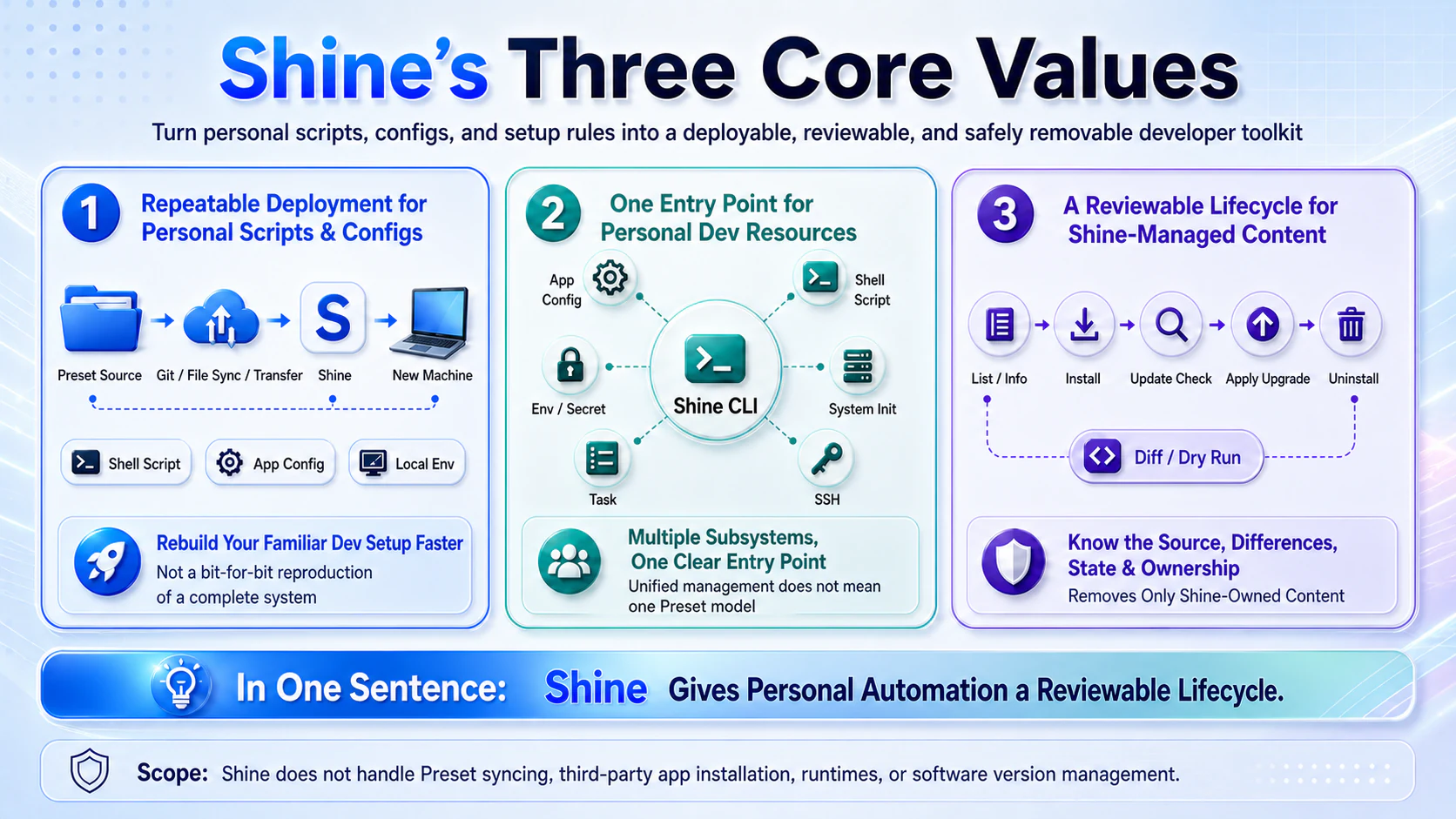
What Shine helps you do
- Use a script like any other command. Install it once and call it by name from
PATH. - Keep personal configuration together. Maintain it in one preset folder; Shine copies, transforms, or merges each file where its application expects it.
- Keep each machine's values on that machine. A preset declares the keys it needs; you provide the values locally.
- Give encrypted credentials only to commands that need them. Seal tokens and other sensitive project values as GPG or age ciphertext, then decrypt them on demand for selected child processes.
- Look before you update. By default, inspect what changed first; Shine applies it only when you choose to upgrade.
- Remove only what Shine installed. Your source folder and unrelated files stay in place.
Try a built-in preset
Install the image helpers, resize a photo, and inspect what Shine added:
shine list --available
shine install shell/image-tools
img-resize photo.jpg
shine info shell/image-tools
You can also browse ready-made configuration for tools such as Starship, Git, Vim, and Ghostty. Surge and Clash Verge Rev have their own guided setup in application presets.
Build presets around your routines
A preset folder can arrive through any folder-sync tool, archive, network transfer, version-control checkout, or manual copy. Shine does not prescribe how you share it.
The built-in image-tools preset shows this pattern with reusable compression, resizing, and format
conversion commands. Your own presets might package collision-aware batch renaming, spreadsheet
cleanup, or document printing in the same way. Each command still needs its application or runtime
on the machine. See custom presets for the mechanism and the complete
image workflow.
Give credentials only to commands that need them
Credentials do not have to remain in workspace files or be exported across an entire shell session. For a CLI that repeatedly reads a fixed variable, Shine can install a transparent command wrapper that resolves an encrypted value only when that command runs:
shine env proxy install gh --with GH_TOKEN
gh pr list
The wrapper prefers encrypted GH_TOKEN_SECRET, injects the result only into its child, and does not
export it back to the parent shell. For an occasional sensitive operation, use one-time
shine env run --with ... -- <command> injection instead of keeping a wrapper enabled. See
manage environment variables and secrets to choose between the two.
This also reduces the chance that plaintext secrets reach files, logs, patches, or AI agent context, but it is not a sandbox: the target command and its descendants can still read injected values. See protect environment secrets when using AI agents for the complete workflow and security boundaries.
Use the same toolkit for more than files
Save commands you repeat as tasks, carry selected values into an SSH session, and decide exactly which remote workflow may receive a secret. Shine can also prepare selected parts of macOS, Ubuntu, or Windows, but it does not take over third-party tool versions; see system initialization for that boundary.
Start here
- Install Shine.
- Complete your first preset installation.
- Browse the built-in presets to see what you can use now.
- Continue with shell presets, application presets, environment variables and secrets, system initialization, terminal theme synchronization, tasks and the local service, or SSH sessions, secret brokering, and file transfer.
If something is already failing, go directly to Troubleshooting. Open the command reference when you need every option.