Shine
Shine helps you manage everyday script tools and application settings, with sensitive information stored encrypted and used on demand.
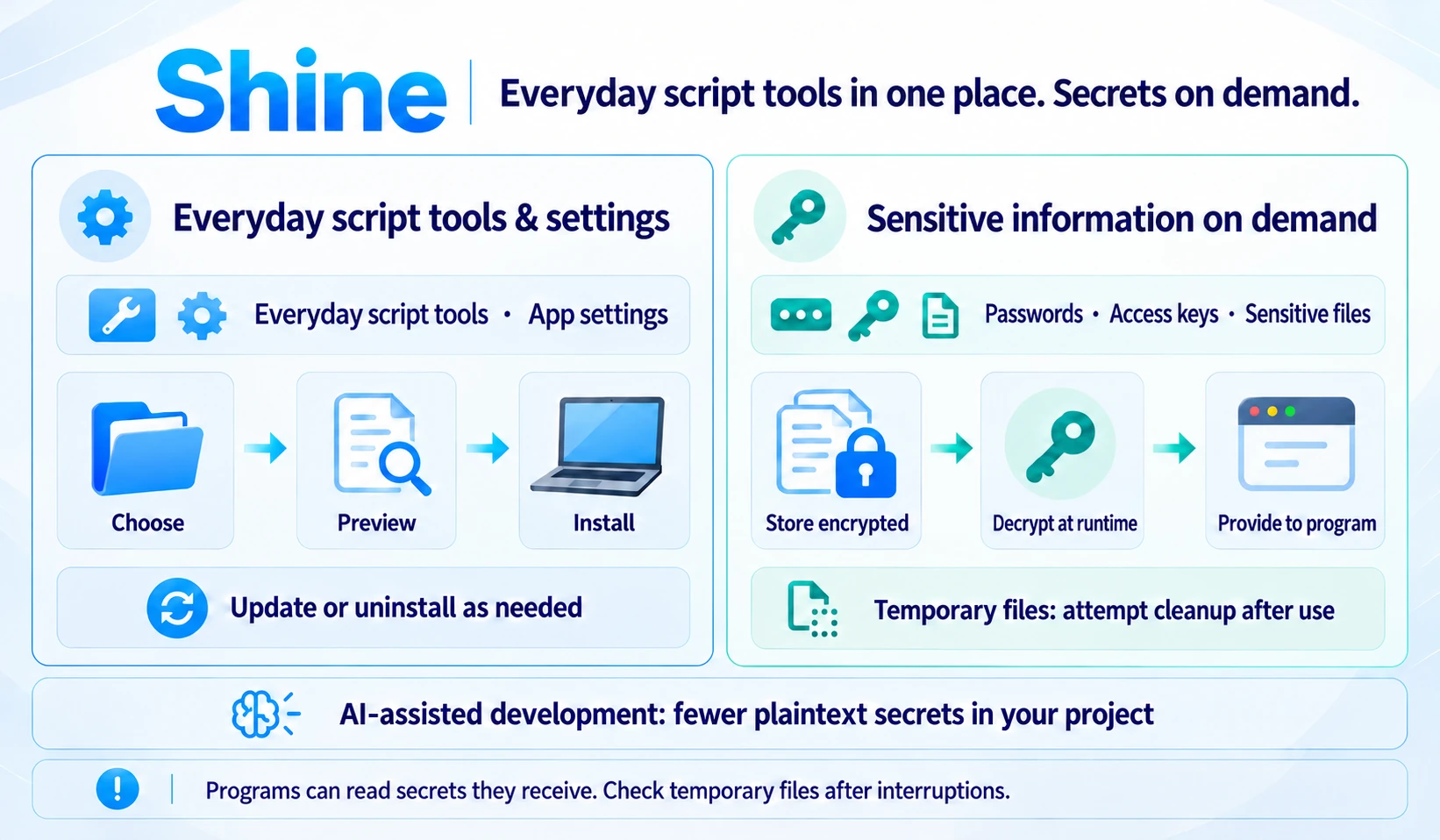
Everyday script tools and application settings are often scattered across different locations, making them harder to maintain over time and leaving you to set them up again on another computer. Shine helps you manage them in one place. It can also store passwords, access keys, and other sensitive information encrypted, then provide it on demand when a selected program runs.
This manual applies to Shine 2.10.0. Use the version selector to find the 1.8.x manual. For an existing installation, see Upgrades and migration for your starting version. Before upgrading from 1.x, read the upgrade guide.
Everyday script tools and settings
You can use existing presets without writing scripts yourself. A Preset groups tool scripts, application settings, and installation rules so you can select what you need and install it on other computers. Shine is a command-line tool, so you use it in a terminal. Applications or runtimes required by a preset must also be installed separately.
Learn how to install and use commands in shell presets.
You can also try application presets for tools such as Ghostty, Surge, or Clash Verge Rev. They manage configuration; you install the applications separately. Shine backs up existing configuration it does not manage before replacing it. During uninstall, it checks the files and restores the backup only when removal is safe. By default, modified files and files it cannot confirm it manages are kept for you to review.
Before installing, updating, or uninstalling a preset, Shine shows the planned changes for your approval. For operations that support recovery, it provides guidance after an interruption; conflicts may still need manual handling.
Use sensitive information on demand
Once encryption is configured, you can store passwords, service access keys, and sensitive files encrypted, then decrypt and provide them when a selected program runs. This reduces long-lived plaintext in working folders or across an entire terminal session. Give sensitive information only to programs you trust.
Programs that read files can use temporary decrypted copies. Shine starts the program after all selected files are ready and attempts to remove the files it created when the program ends. If a destination already exists, Shine stops rather than overwriting it. Files replaced during the run are kept, and cleanup failures are reported. Temporary files are plaintext while in use, so programs with sufficient permissions can read them. After force-killing Shine or losing power, inspect and remove any leftovers.
Let AI help you code, with fewer plaintext secrets in your project
After encrypting sensitive values and handling the original plaintext, an AI tool reading those encrypted files sees ciphertext. Without the corresponding decryption capability, it cannot directly obtain the original secrets. This reduces the risk of accidental exposure when scanning, copying, or committing project files.
Importing configuration or encrypting it does not automatically delete the original .env files.
Remove the original plaintext yourself, or move it somewhere the AI cannot read. .gitignore
affects which files Git includes; it does not prevent AI tools from reading them. Private keys and
access to decryption also need separate protection.
Programs that can decrypt or receive secrets can still read, print, or copy the plaintext. If an AI can invoke decryption tools, or modify and run a program that receives secrets, it may also access them. Shine does not provide sandbox isolation or guarantee prevention of every leak. See protect secrets during AI-assisted development for setup and permission boundaries.
Explore what you need
- Environment variables and encryption: use
shine envto manage variables and encrypted secrets, provide values to one command, or set up a wrapper for a frequently used command. An enabled wrapper also applies to that command's different subcommands. See environment variables and secrets. - Project environments: use
shine.workspace.tomlto declare configuration load order for environments such as development and production, along with encryption recipients. Share configuration and ciphertext after encryption; do not commit private keys, plaintext secrets, or personal override files. See layered project environments. - Sensitive file groups: organize signing certificates or service account files by purpose, with paths for ciphertext and temporary decrypted files. See temporary secret files.
- Custom presets: organize your own scripts and settings for reuse or sharing. Before using external presets, review the code they will run and authorize it through Shine. See custom presets.
- Common tasks and remote operations: save repeated commands, or use SSH to transfer files and choose which environment variables and secrets remote commands can use.
- System setup and appearance: initialize selected parts of a system or synchronize terminal themes. Shine does not manage third-party tool versions.
Start here
First, install Shine, then follow the quick start to install your first preset, or browse the built-in presets to choose tools and settings you need. For encryption features, start with environment variables and secrets.
For help with a problem, see Troubleshooting. To look up commands and options, use the command reference.